

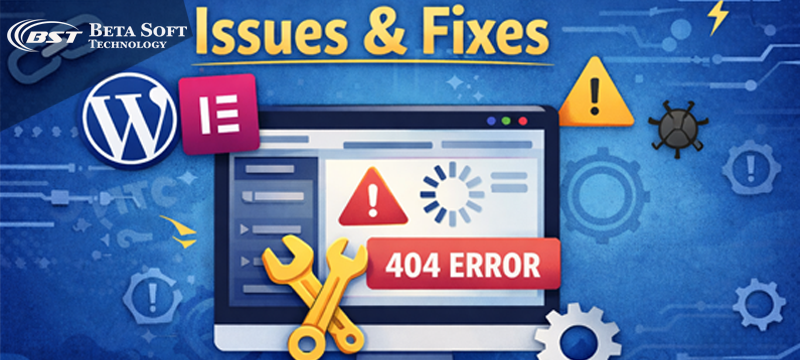
Elementor has become an essential page builder for countless WordPress websites, offering drag-and-drop design, real-time visual editing, and ready-made templates for almost every use case. However, despite its flexibility and power, Elementor is not immune to technical issues. Problems such as the editor not loading, widgets malfunctioning, layouts breaking, or changes not reflecting on the live site often surface unexpectedly – especially after updates or configuration changes.
Navigating common Elementor issues in WordPress does not have to be overwhelming. In most cases, these problems can be traced back to predictable causes such as caching conflicts, plugin or theme incompatibility, server limitations, or incorrect settings. Understanding the root cause behind each issue not only speeds up troubleshooting but also helps maintain website stability, performance, and user experience.
In the guide, we break down the most frequent Elementor problems by category, explaining what typically triggers them, how to identify them early, and the proven steps used to resolve them effectively.
1. Elementor Editor Not Loading or Stuck on Loading Screen
Sometimes the Elementor editor fails to load properly, leaving users stuck on a continuous loading screen. This issue is commonly caused by JavaScript conflicts, incompatible plugins or themes, incorrect server configuration, or aggressive caching layers that interfere with Elementor’s loading process.
Elementor editor stuck on loading
A persistent loading screen usually points to a script conflict or the editor not receiving the resources it needs. When the panel doesn’t appear and the interface freezes on “Loading…”, it’s almost always because another plugin injects a script that breaks Elementor’s JavaScript.
How to identify:
The spinner never disappears, and the browser console shows red error messages related to elementor.js or another plugin file.
Solutions:
- Clear all caching: browser cache, WordPress caching plugins, and server-level caches.
- Temporarily switch to a default theme to rule out theme conflicts.
- Deactivate plugins one by one until the editor opens normally.
- Increase PHP memory to at least 256MB to avoid Elementor memory limit error Many hosts allow adjusting this from the control panel.
White screen while editing
A blank page usually signals a fatal PHP error or exhausted resources. Many users describe this as Elementor not working or the dreaded white screen problem.
How to identify:
The entire screen becomes blank, no UI loads, and refreshing doesn’t help.
Solutions:
- Enable debugging in WordPress to reveal the exact error.
- Increase memory_limit and max_execution_time.
- Update or replace any plugin listed in the error log.
- Reinstall Elementor if essential files became corrupted.
Elementor Panel Loading Endlessly or Running Slowly
A sluggish editor may not be an Elementor problem at all. Slow hosting, overloaded servers, or heavy third-party plugins can drag the editor down.
How to identify:
The editor eventually loads, but sluggishly, pointing to Elementor performance issues.
Solutions:
- Test server response speed; a slow TTFB often reveals hosting limitations.
- Disable unnecessary plugins loading scripts in the admin area.
- Reduce WordPress Heartbeat frequency using a performance plugin.
- Consider moving to a host optimized for WordPress builders.
Stuck on “Updating…” when saving changes
The endless “Updating…” message indicates WordPress plugin conflict issues or blocked AJAX communication. Elementor tries to save but the request gets blocked or times out.
How to identify:
The update button shows “Updating…” indefinitely without completing.
Solutions:
- Verify that the server firewall or ModSecurity isn’t blocking AJAX calls.
- Increase execution time to handle slower requests.
- Re-check plugin conflicts, especially plugins that modify admin-ajax behavior.
- Restart editing in Safe Mode (Elementor > Tools > Safe Mode).
Google Fonts not loading inside Elementor
When Google Fonts freeze while loading, there is usually a connectivity block or the server is preventing outbound requests.
How to identify:
Fonts refuse to populate or the editor hangs on the font loading process.
Solutions:
- Enable Elementor’s option to load Google Fonts locally.
- Allowlist Google Fonts in server firewalls.
- Disable third-party tools that block external requests.
500 or 404 errors when opening the editor
A 500 error points to a server misconfiguration; a 404 suggests issues with rewrite rules.
How to identify:
The editor never launches and instead shows an error page.
Solutions:
- Regenerate WordPress permalinks to rebuild .htaccess.
- Check hosting error logs for PHP or permission issues.
- Switch PHP versions if the current one is incompatible.
2. Elementor Content Not Updating on the Frontend
One of the most common Elementor issues in WordPress occurs when content updates appear correctly inside the Elementor editor but fail to reflect on the live site. This mismatch is typically caused by aggressive caching, CSS file generation issues, or optimization plugins preventing updated styles from loading on the frontend.
Changes not showing after update
This problem feels deceptive—everything looks fine in the editor, yet the live preview stubbornly clings to old content.
How to identify:
Refreshing the page shows the previous version, not the newly saved design.
Solutions:
- Purge all cache layers, including CDN caches like Cloudflare.
- Regenerate Elementor CSS files (Elementor > Tools > Regenerate CSS).
- Ensure proper write permissions on /wp-content/uploads/elementor so new CSS files can be generated.
- Disable optimization plugins temporarily to confirm they aren’t combining/minifying files incorrectly.
Elementor not saving changes
Sometimes it’s not a caching issue—the changes simply never save.
How to identify:
After clicking update, refreshing the editor reveals content reverted to the old version.
Solutions:
- Check database write permissions.
- Ensure the hosting plan hasn’t hit storage limits.
- Disable security plugins that may block POST requests.
Global colors or fonts not applying
Global styles are powerful, but they also depend heavily on CSS cascade behavior. When they fail, another stylesheet is usually overriding them.
How to identify:
Inspector tools reveal theme or plugin CSS using !important or stronger selectors.
Solutions:
- Regenerate CSS.
- Remove conflicting inline styling.
- Adjust selector specificity in custom CSS.
- Re-save Theme Builder templates so Elementor reorders its stylesheets.
Custom CSS not working
When custom CSS doesn’t render, either caching or specificity is the culprit.
Solutions:
- Ensure CSS is placed at the correct hierarchy: widget > column > section > global.
- Check whether minification plugins rewrote the stylesheet incorrectly.
- Add slightly stronger selectors if needed (without overusing !important).
Images not loading
This issue may appear after migrations or due to WordPress caching issues Elementor plugins create.
How to identify:
Images show broken icons or load inconsistently.
Solutions:
- Re-upload affected images.
- Fix incorrect URLs using a search-and-replace tool.
- Disable lazy loading temporarily.
- Confirm folders inside /uploads have correct permissions.
3. Elementor Widget Issues and Functionality Problems
Elementor widgets are core to building interactive and dynamic WordPress pages. When these widgets fail to load or function correctly, the page can appear broken or unprofessional. In most cases, Elementor widget issues are caused by missing or blocked scripts, plugin incompatibility, version mismatches, or incorrect configuration settings.
Widgets not loading or drag-and-drop not functioning
A frozen widget panel or drag issue usually suggests JavaScript interference.
How to identify:
Dragging a widget does nothing; sometimes the widget list itself stays blank.
Solutions:
- Inspect console logs for JS errors.
- Reinstall Elementor and Elementor Pro to restore missing files.
- Deactivate conflicting plugins, especially visual editor add-ons.
Elementor Pro widgets not appearing
A desynced license or mismatched plugin versions often causes Elementor Pro features missing issues.
How to identify:
Pro widgets vanish, even though Elementor Pro is installed.
Solutions:
- Reconnect the license in Elementor settings.
- Ensure both Elementor and Elementor Pro versions are compatible.
- Reactivate the Pro plugin to refresh widget registration.
Motion effects and Lottie animations not working
Animations require specific frontend scripts. When those fail, the effect won’t show.
How to identify:
Elements appear static; animations work inside the editor but not live.
Solutions:
- Confirm required scripts loaded in the page source.
- Host Lottie files locally if external loading is blocked.
- Reduce animation complexity for mobile if performance hinders rendering.
Elementor popups not opening or triggering
Popup conditions and triggers must be configured precisely; conflicts can also block scripts.
How to identify:
The popup never appears despite conditions being set.
Solutions:
- Double-check display conditions and triggers.
- Use Safe Mode to test for JS conflicts.
- Disable cookie-based trigger blockers in caching plugins.
Elementor forms not sending emails
Email sending depends on WordPress’s mailing configuration, not Elementor alone.
How to identify:
Form shows a success message but no email arrives.
Solutions:
- Install SMTP configuration to route emails properly.
- Verify email notification settings inside the form.
- Ensure the host allows PHP mail or SMTP connections.
4. Elementor Layout and Design Issues
Even pages that appear visually correct inside the Elementor editor can display inconsistently on real devices. Elementor layout and design issues commonly occur due to conflicting CSS, misconfigured responsive settings, fixed-width elements, or outdated theme structures that do not fully support modern page builders.
Responsive design breaking on mobile or tablet
Mobile breakpoints require extra care. When the layout distorts, responsive settings are often misconfigured.
How to identify:
Columns stack incorrectly or text overlaps on smaller screens.
Solutions:
- Adjust column order, padding, and typography for each breakpoint.
- Remove fixed-height containers or rigid widths.
- Preview on real devices during editing.
Column width problems and overlapping sections
Overlapping content usually indicates negative margins, improper positioning, or container misalignment.
How to identify:
Elements overlap or stretch beyond their intended boundaries.
Solutions:
- Reset margins and padding.
- Switch absolute/relative positioning back to default.
- Rebuild the section using new containers if layout breaks repeatedly.
Header and footer not displaying correctly
Theme conflicts often cause Elementor header footer not working or Theme Builder not applying problems.
How to identify:
The theme’s default header appears instead of the custom one.
Solutions:
- Set display conditions to “Entire Site.”
- Check that the theme supports Elementor templates.
- Disable the theme’s built-in header/footer if an option exists.
Buttons not clickable due to overlapping elements
Invisible overlapping layers often block clicks.
How to identify:
Inspector mode highlights a container sitting above the button.
Solutions:
- Adjust z-index values.
- Remove accidental overlay sections.
- Disable sticky headers or floating elements to test overlap.
5. Elementor Template Issues and Structure Conflicts
The classic “Sorry, the content area was not found” error occurs when a WordPress theme lacks the proper hook for Elementor to inject content. This prevents pages from rendering correctly and can disrupt the user experience or website functionality. Resolving this often requires using an Elementor-compatible theme, applying the Elementor Canvas template, or consulting a professional to ensure proper template and structure setup.
How to identify:
The message displays immediately when trying to edit a page.
Solutions:
- Switch to a theme fully compatible with Elementor.
- Use the Elementor Canvas page template as a workaround.
- Contact the theme developer about adding the_content()
Theme Builder templates not replacing theme defaults
Incorrect display conditions or theme priority cause this issue.
Solutions:
- Reconfigure display conditions.
- Clear cache after updating templates.
- Disable duplicate template plugins that override header/footer placement.
6. Elementor Technical Conflicts and Compatibility Issues
The Elementor editor may crash or fail to function properly when certain plugins inject incompatible scripts or styles. These conflicts can prevent widgets from loading, block editor functionality, or cause unexpected errors. Identifying and resolving these conflicts is crucial for maintaining website stability and ensuring smooth page editing.
How to identify:
Editor crashes only when specific plugins are active.
Solutions:
- Use a staging site to test plugin combinations.
- Replace heavy or outdated plugins with alternatives.
- Keep Elementor and WordPress versions updated.
Font Awesome icons missing
Missing icons usually hint at icon libraries not being enqueued properly.
Solutions:
- Enable Font Awesome support in Elementor Settings.
- Ensure no plugin is deregistering the library.
- Avoid duplicate icon libraries that override Elementor’s loading order.
Memory limit errors
Elementor is resource-heavy, and memory constraints can break features.
Solutions:
- Set PHP memory to 256–512MB.
- Disable unnecessary plugins to reduce memory consumption.
- Contact hosting support if limits can’t be increased manually.
Elementor Pro license not syncing
When the license fails to sync, Pro widgets and updates may stop working.
Solutions:
- Reconnect the license.
- Confirm the server allows external requests to Elementor’s API.
- Reinstall Elementor Pro if syncing continues to fail.
Closing Notes:
Elementor is one of the most powerful page builders in the WordPress ecosystem, but even the best tools can encounter occasional issues. Most Elementor problems – such as editor loading errors, widget malfunctions, layout conflicts, and template issues – can be resolved with systematic troubleshooting, including clearing caches, checking plugin or theme conflicts, reviewing server limits, and adjusting settings carefully.
A website that runs smoothly after resolving these issues is often more stable and reliable than before, as the root causes have been identified and eliminated. Understanding and addressing these problems not only prevents future surprises but also ensures your WordPress site delivers a seamless user experience.
If you’re looking to build, optimize, or maintain your WordPress website with Elementor, our expert WordPress development services can help. From troubleshooting technical conflicts to implementing responsive layouts and custom functionality, we ensure your website performs flawlessly while meeting your business goals. Contact us today to get professional WordPress support and take your website to the next level.